
Overview
Adding a new user gives a team member their own Nexus login, tied to your agency's account and branch. This is normally done by an office administrator.
Steps
- Log in to Nexus with an account that has admin permissions and go to Admin Settings.
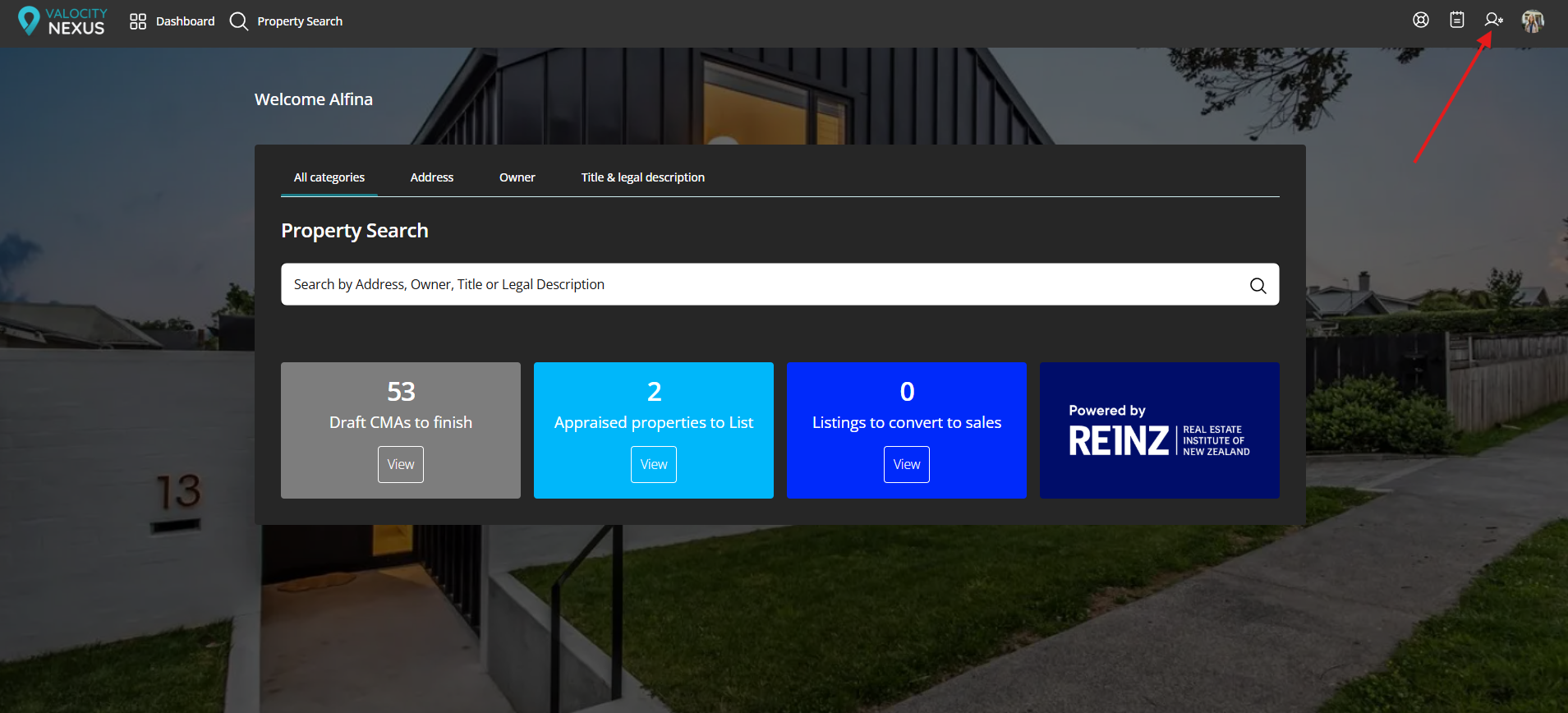
- Select Create User.
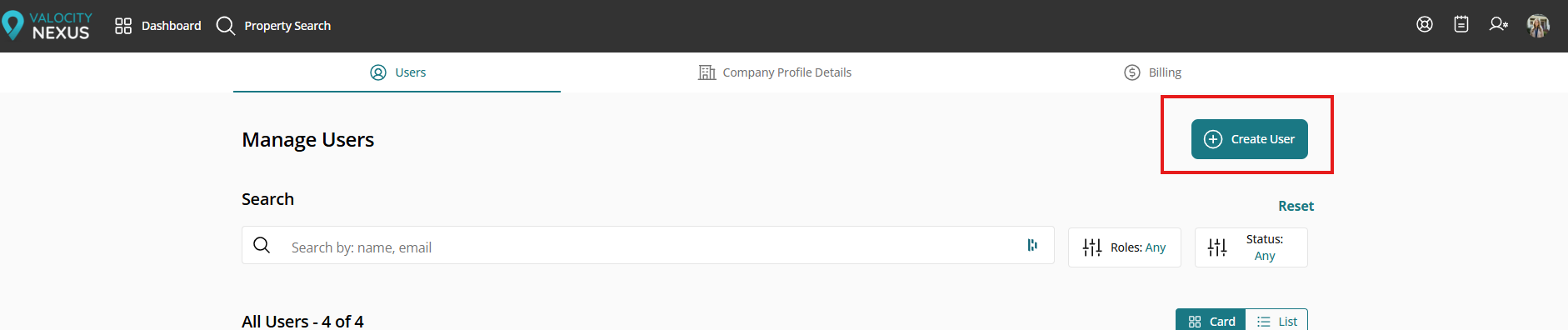
- Enter the new user’s First name, Last name, email address, and their valid REINZ ID.
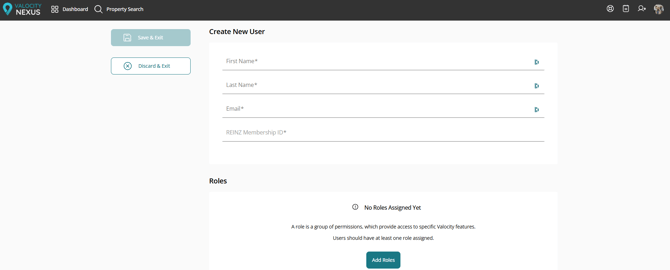
- Choose their role (for example, Admin or User). The role determines what they can see and do, so pick the closest match to their day-to-day work rather than defaulting to the highest level.
- Select Save & Exit. Nexus emails the new user a link to set their password and activate their account.
- This user will then also be added to the next Nexus bill.
After sending the invite
Activation window: the new user should activate their account within 24h . If the invite has expired, the user can follow the forgot password flow and they should be able to setup their new account like this.
Troubleshooting
Invite email not received: check the email address for typos, ask the user to check spam, and resend the invite. If it still does not arrive, log a ticket with the email address used.
“User already exists” error: this usually means the person already has a Nexus login from a previous role or agency. Do not create a second account; contact support to have the existing account reassigned or reactivated.
New user cannot see the branch's listings or CMAs: check their branch assignment and role permissions, since both affect what they can see.
REINZ ID cannot be validated. This is a mandatory step and without a valid REINZ ID we cannot create a user in our NZ platform.