
Before You Start
Our new template slightly changes how you interact with the Customise CMA page, but all existing template functionality remains available.
Because the new template includes a live preview, we’ve updated the page layout to create space for this enhanced viewing experience.
Step 1: Open the Customise CMA Page
- Log in to Valocity Nexus.
- Navigate to create a new or edit a draft CMA.
- Open the CMA you want to customise.
- Add all comparables, relevant notes, make all changes you might need like editing attributes or changing images for your properties selected
- Navigate to Customise CMA page.
Expected result: The editing controls appear on the left-hand side, and the live preview appears in the preview area.
Screenshot placeholder: Customise CMA page with editor and live preview visible.
Step 2: Edit CMA Elements
Use the editing options on the left-hand side to update the content and configuration of the CMA.
Examples of editable elements may include:
- Template selection
- CMA sections
- Recently sold property information
- PDF inserts
- Other content such as Subject Property commentary or commission investment schedule
Expected result: As you make changes, the live preview updates almost instantly.
Tip: If you are preparing a CMA for a listing presentation, review each section in the preview before generating the PDF.
Step 3: Use the Live Preview
The live preview shows how the CMA will appear before the final PDF is generated. This helps reduce errors and removes the need to repeatedly generate PDFs just to check formatting.
Use the live preview to check:
- Overall layout
- Branding and logo placement
- Footer display
- Page section order
- PDF inserts
- Property data presentation
- Print-readiness of the final document
- Zoom in or out to check the document to perfection or better yet, go in full screen mode.
Expected result: The preview reflects edits made on the left-hand side in near real time.
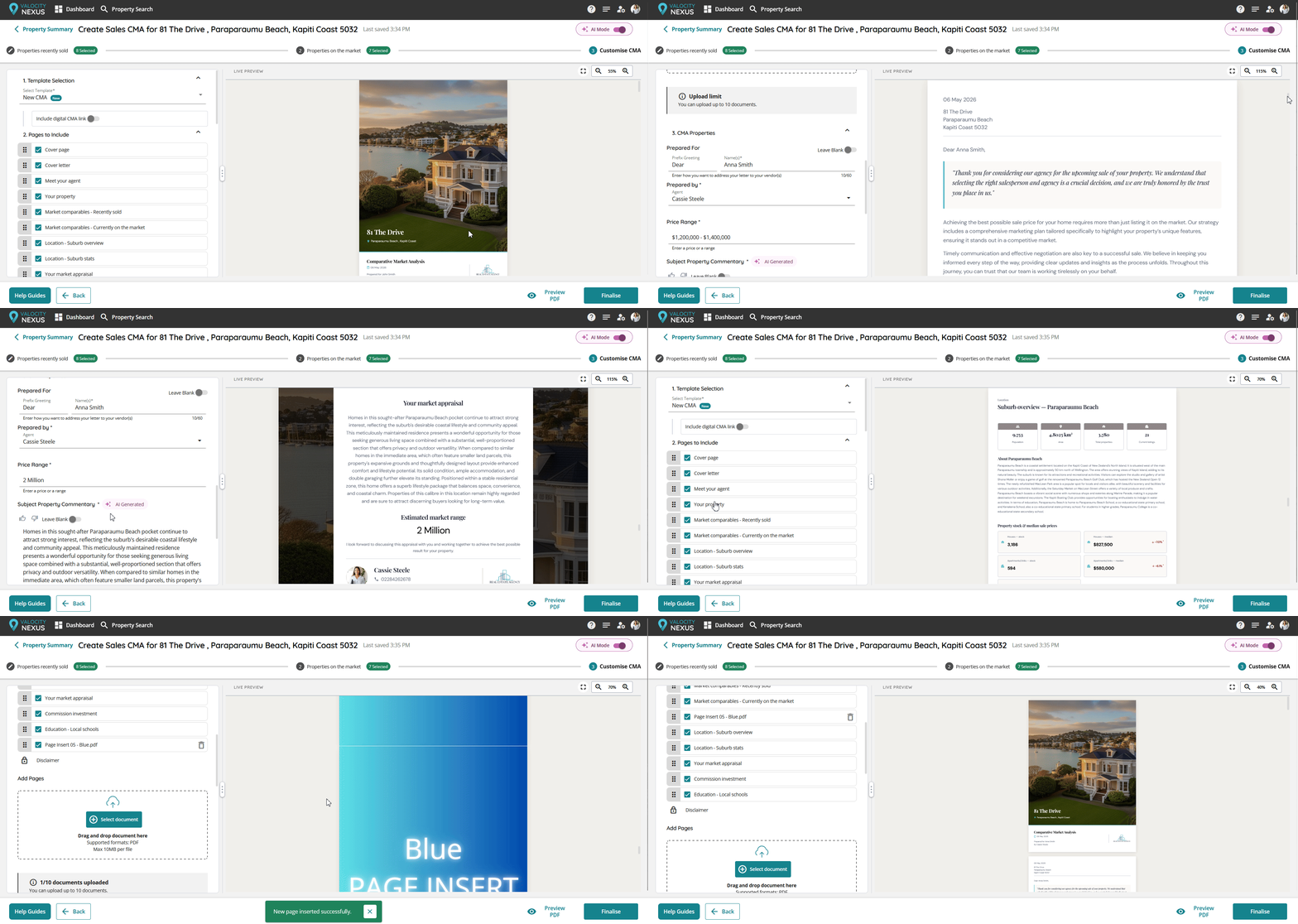
Step 4: Review PDF Inserts
If the CMA includes PDF inserts, review them in the live preview before generating the final CMA PDF.
Check that:
- Inserts appear in the expected location — remember that page inserts from the old Adobe-based CMA must be re-inserted and positioned correctly in the new HTML template.
- Insert pages are included in the preview
- The report still flows correctly around the inserted content
- Branding and report structure remain consistent
Expected result: PDF inserts are visible in the preview, giving users more confidence before final generation.
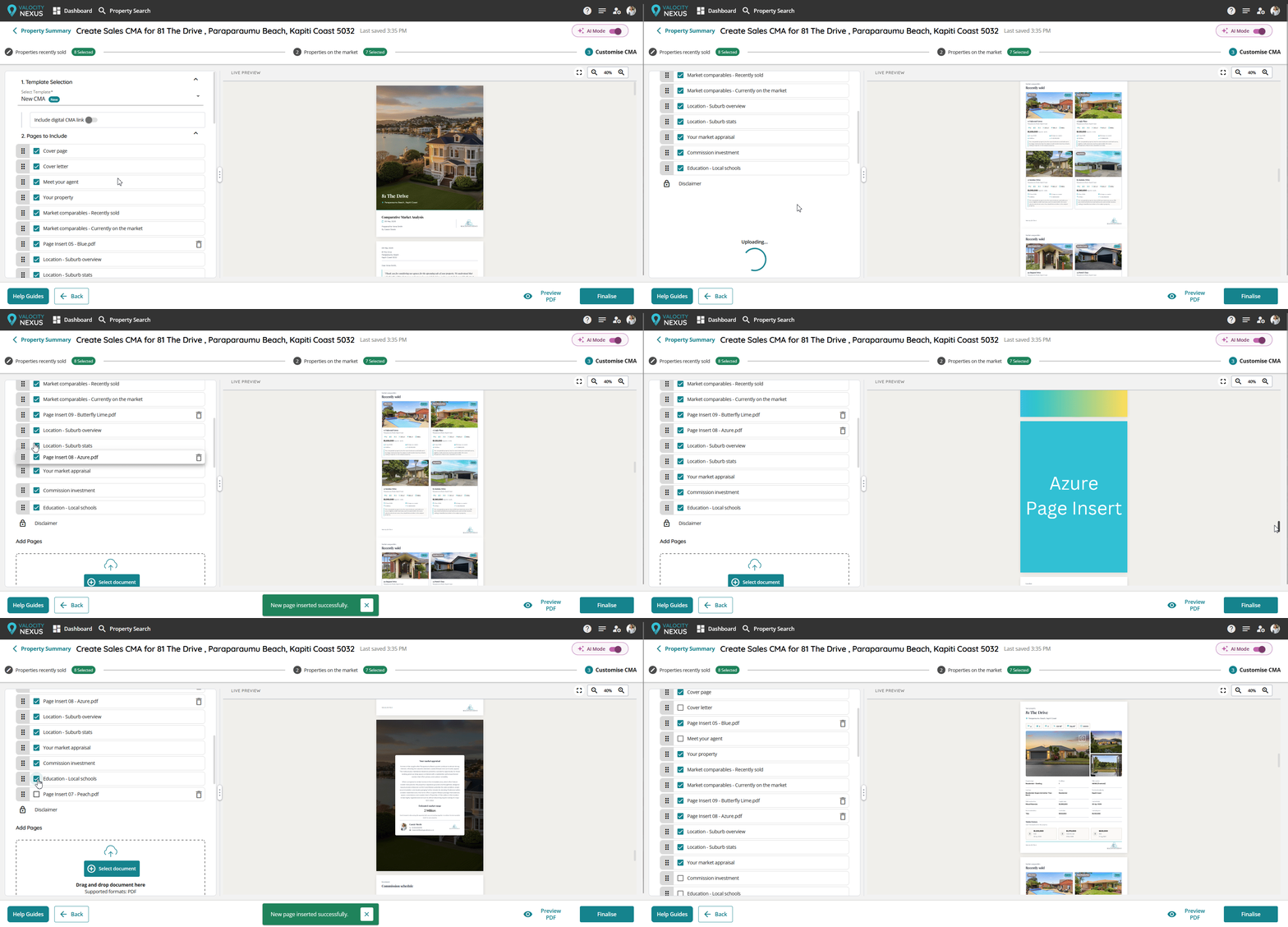
Step 5: Zoom into the Preview
Use the zoom capability to inspect details more closely.
Zoom is useful for checking:
- Logo quality and placement
- Footer display
- Small text readability
- Table and component spacing
- Print presentation details
Expected result: The preview can be enlarged so users can inspect the CMA before generating the PDF.
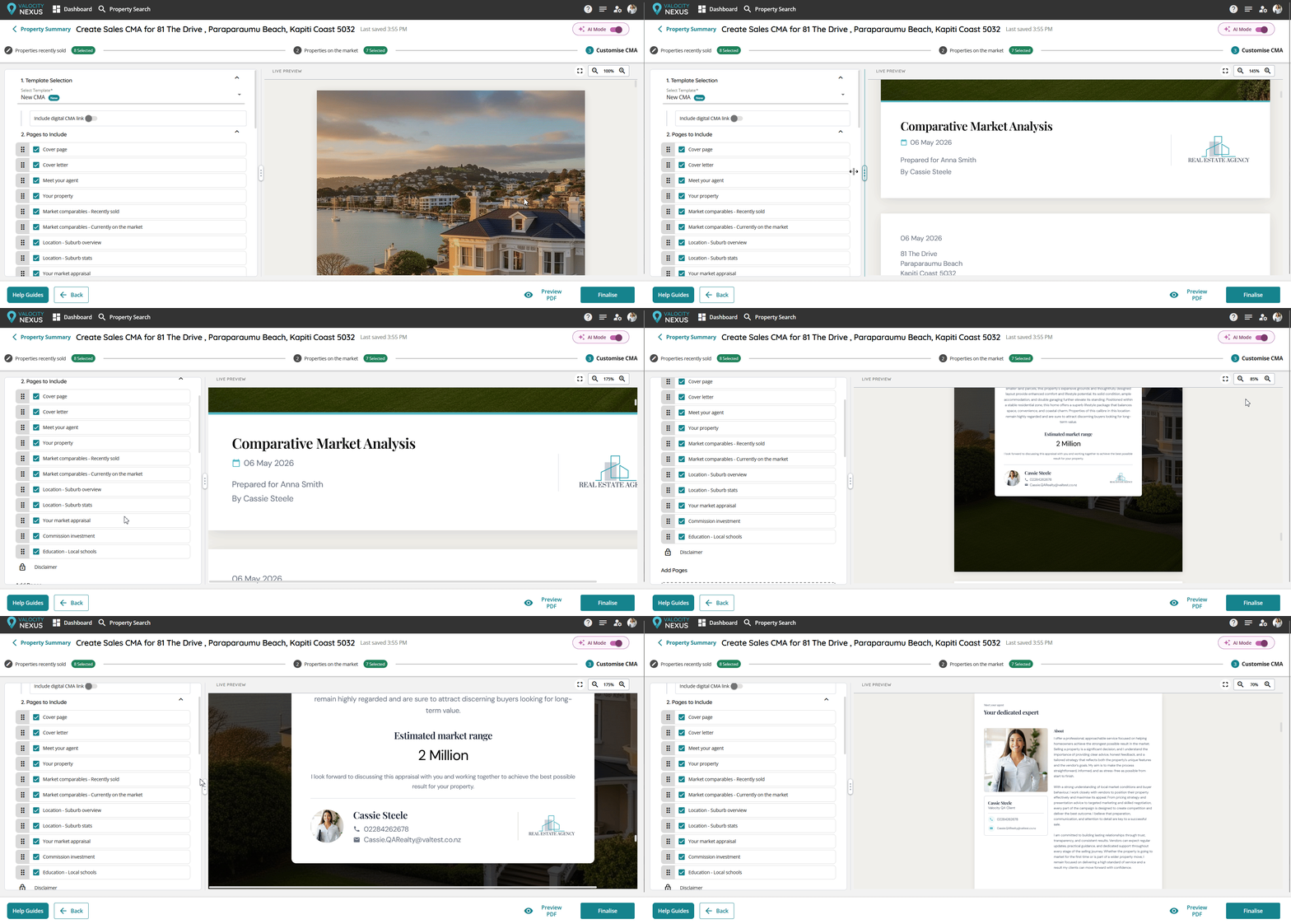
Step 6: Navigate with Clickable Page Sections
Use clickable page sections to jump directly to the area of the CMA you want to review or edit.
This is especially useful when:
- The CMA is long
- You need to check a specific section quickly
- You are reviewing recently sold properties
- You are confirming PDF inserts
- You are doing a final quality check before generating the PDF
Expected result: Clicking a page section takes the user directly to that area of the CMA.
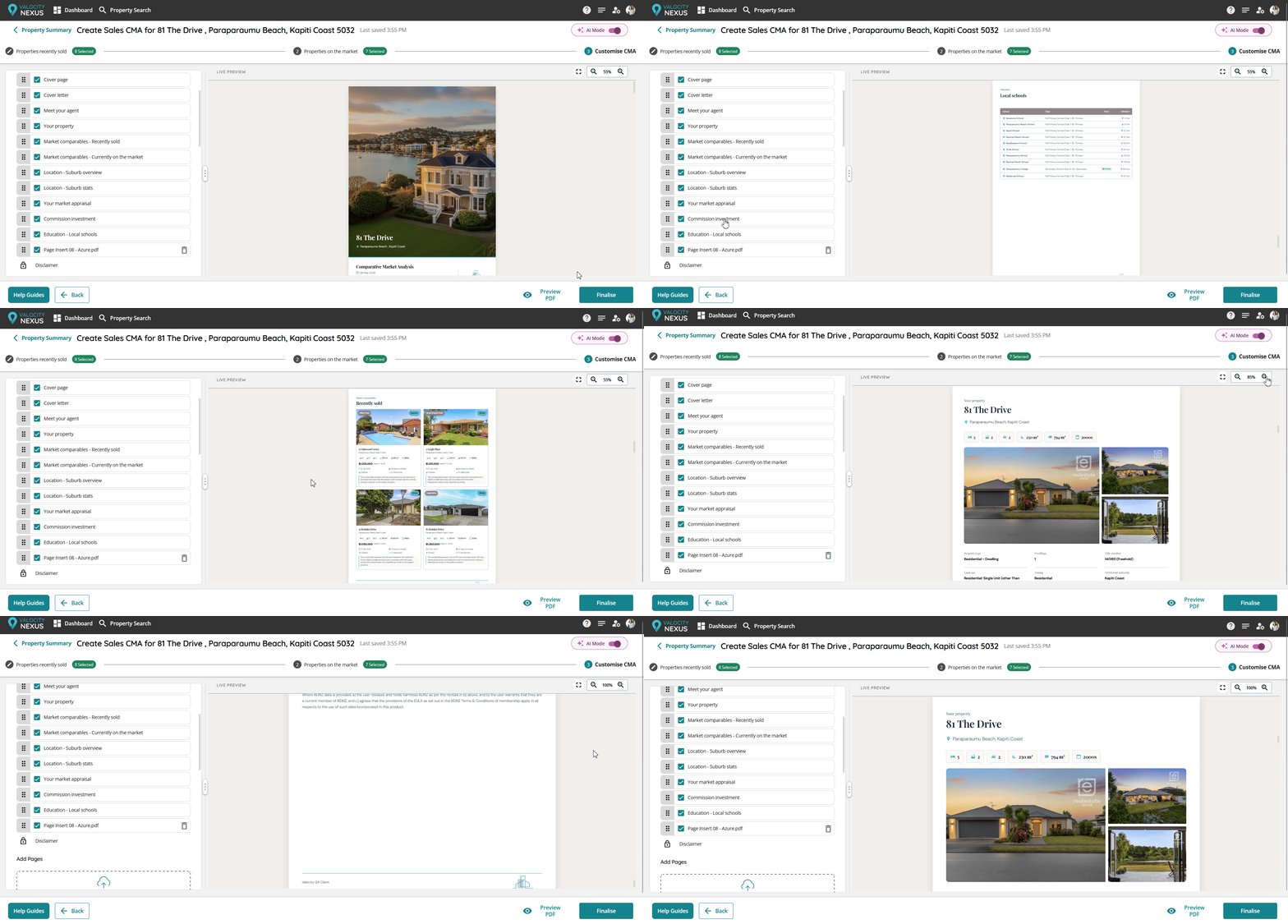
Step 7: Review Dynamic Components
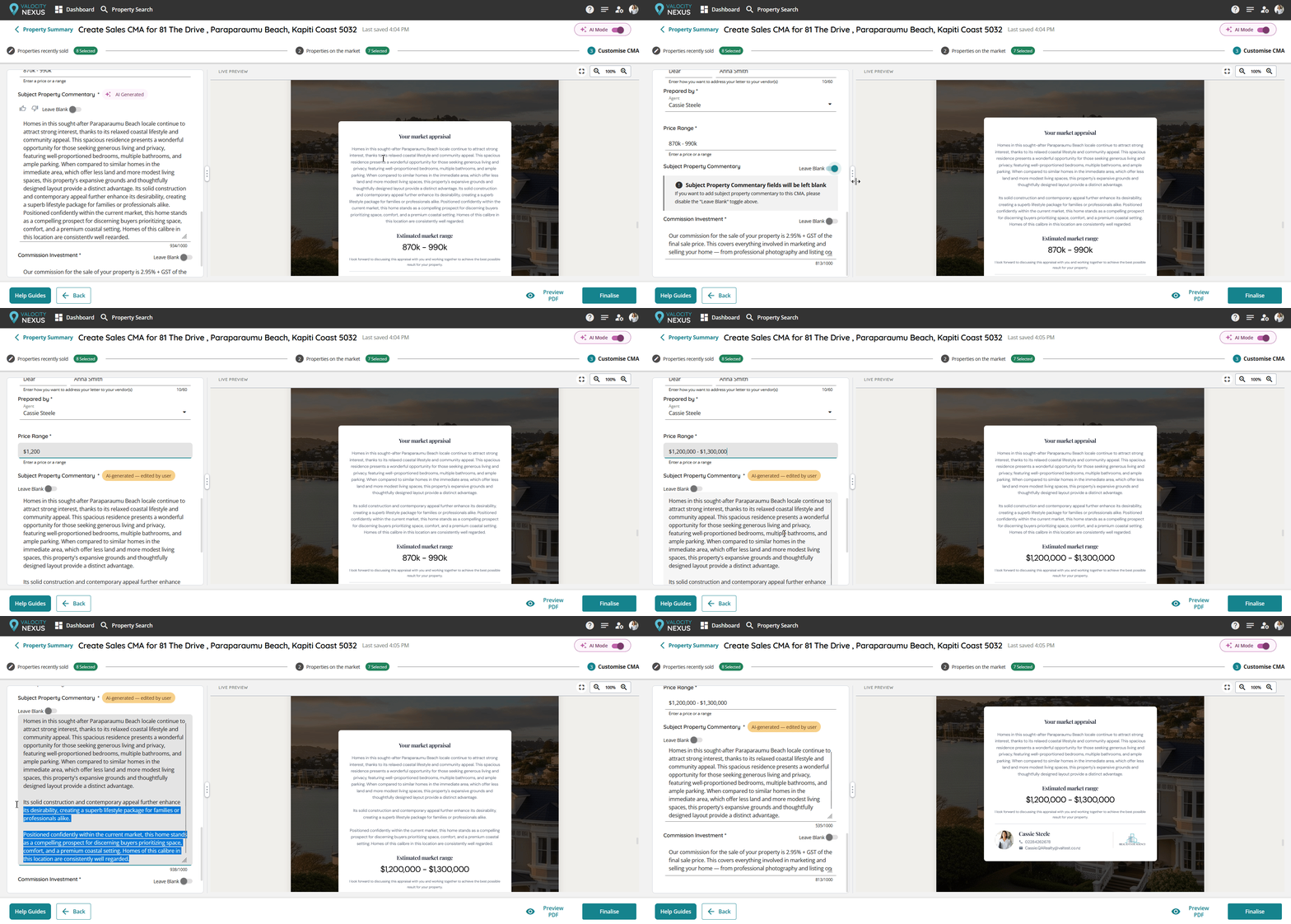
The new CMA template includes components that adjust based on the values entered. This helps the CMA better fit the content without requiring manual layout work.
Review dynamic components for:
- Correct spacing
- Complete information display
- No unexpected truncation
- Clean presentation in the final preview
Expected result: Components resize or adjust to fit the entered values and maintain a professional layout.
Step 8: Review the Sale/CV Ratio
For recently sold properties, review the Sale/CV ratio now included in the CMA.
Use this ratio to support client conversations about:
- Recent sale performance
- Market conditions
- Relationship between sale price and CV
- Comparative property insights
Expected result: Recently sold properties display the Sale/CV ratio where available.
Note placeholder: Add guidance if Sale/CV ratio depends on specific data availability or regional configuration.
Step 9: Check the Branded Footer
Before generating the final PDF, confirm the branded footer is displaying correctly.
Check that:
- Agency name is correct
- Agency logo appears correctly
- Footer line uses one of the agency’s brand colours
- Footer appears consistently across the CMA
Expected result: The CMA includes a polished branded footer that reinforces the agency identity.
Step 10: Generate the Final PDF
Once the CMA has been reviewed in the live preview:
- Complete all edits.
- Review key sections using clickable navigation.
- Zoom into the preview for final checks.
- Confirm PDF inserts are included — ensure any page inserts migrated from the old CMA have been re-inserted and placed in the correct position.
- Generate the final PDF.
Expected result: The final PDF reflects the reviewed CMA preview and is ready to print, download, or share with clients.