⭐ CMA Builder: Property details now edited in a pop-up
Users can now edit the address of a selected comparable property, a change driven by customer feedback. Delivering it meant moving property details off the card and into a pop-up, so details in the CMA Builder are now read-only on the card, with editing handled through Edit images and property details. This is allwoing us to add more editable fields to the CMA flow.
How it works
-
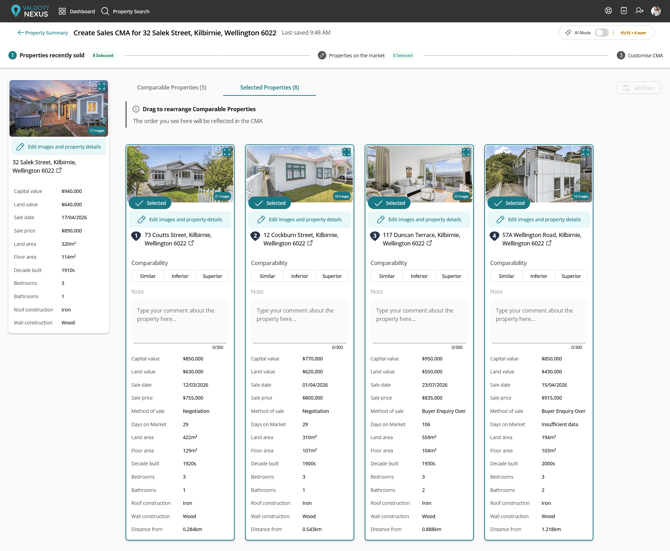
Details on the card, such as land area, floor area, bedrooms, and price, are now displayed as plain values. They can no longer be typed into or changed directly on the card.
-
The target property panel appears on all three steps, Properties recently sold, Properties on the market, and Customise CMA. It is now read-only on each of them, with the pop-up available from any step. To edit them, select Edit images and property details, found just above the address. This is the same button previously labelled Add and edit images, and it's now the single place to manage both images and details.
-
When you select a comparable, its values on the Selected Properties tab are read-only, matching how they appear before selection. To change any of them, select Edit images and property details on that card.
-
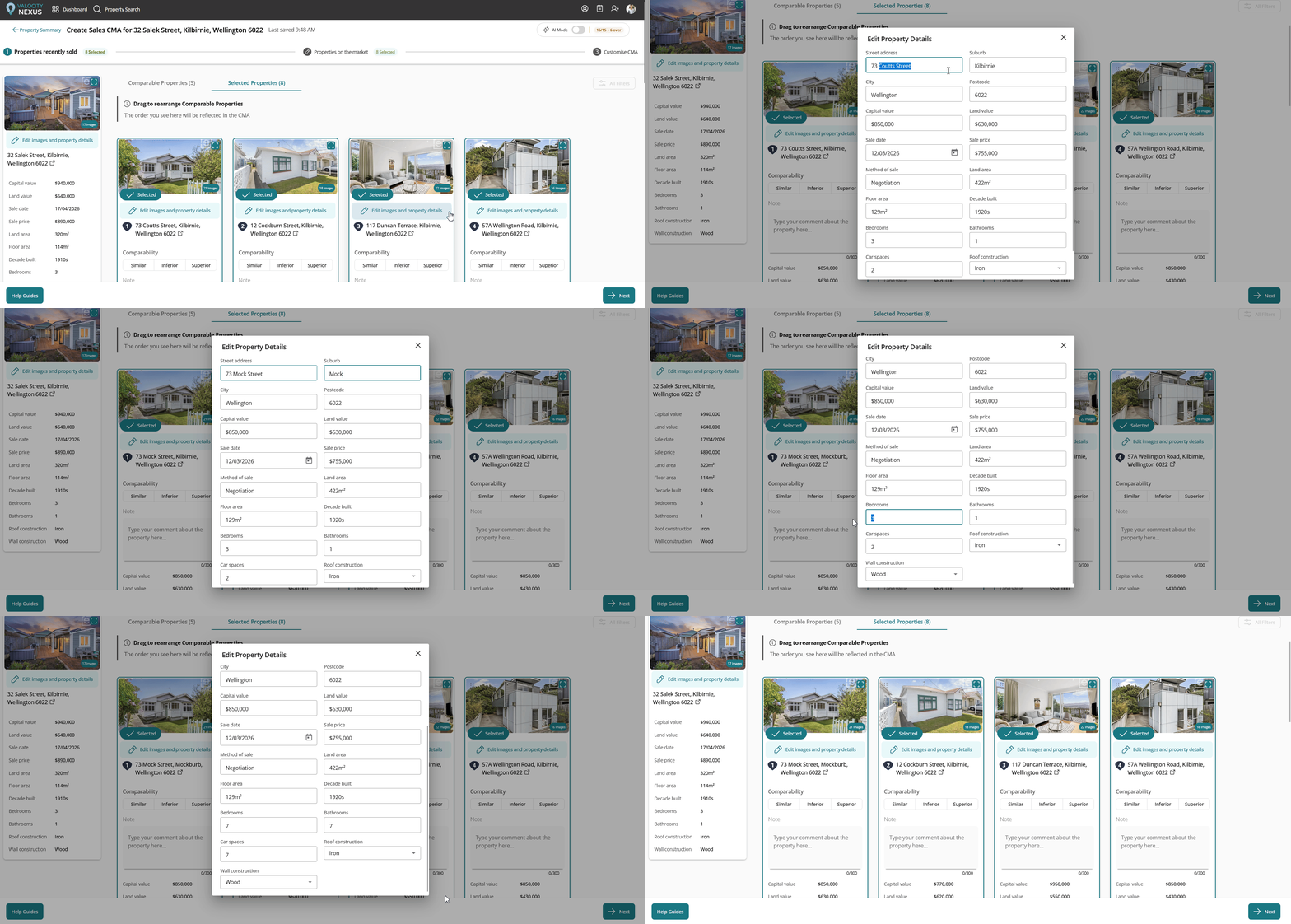
The pop-up opens with the current values already filled in. Images are managed at the top, followed by the property details.
-
For Decade built, enter the decade only, for example 1990. The "s" is added automatically in the CMA output.
-
Changes save automatically as you make them, so there's no save button to press. Closing the pop-up keeps everything you've entered.
-
To undo a change, clear the field and it will return to the original value from the property record. For Roof construction and Wall construction, choose Reset to Council Value from the dropdown.
-
For comparables, Days on Market and Distance from remain read-only.
-
Any edit applies to that CMA only. The underlying property record is never changed.
-
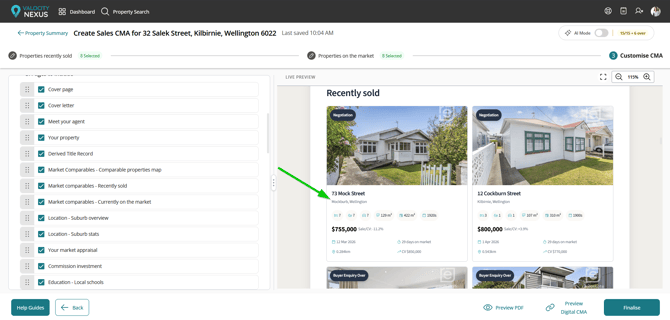
Edits made at any step carry through the rest of the CMA Builder and into the finished CMA.
Why it matters
Agents needed to correct a comparable's street address, and a narrow card leaves no room for an address field. Moving details into a pop-up, the same pattern introduced for the target property, makes the address editable and keeps the cards readable at a glance. It also means editing the target property and comparables now works the same way.
⭐ Additional map layers for Wellington
Additional map layers are now available for Wellington properties.
How it works
-
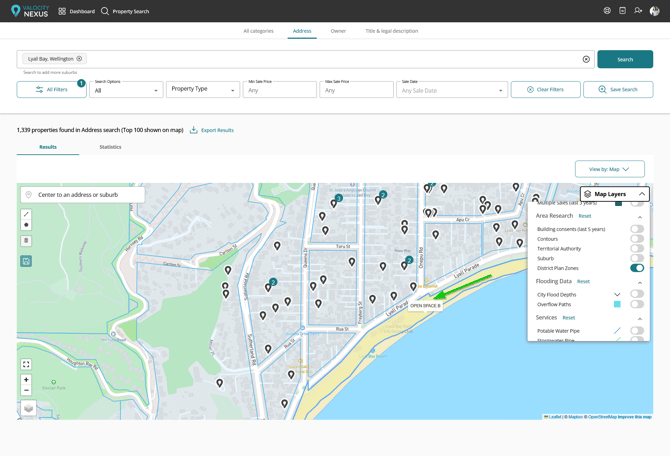
District Plan Zones and Flooding Data, covering City Flood Depths and Overflow Paths, are available for properties within Wellington City Council.
Hovering over a district plan zone on the map shows its name, for example 'OPEN SPACE B'.
-
Flooding Data covers City Flood Depths and Overflow Paths. City Flood Depths expands to show the individual depth bands, each shaded on the map so you can see how flood depth varies across a property.
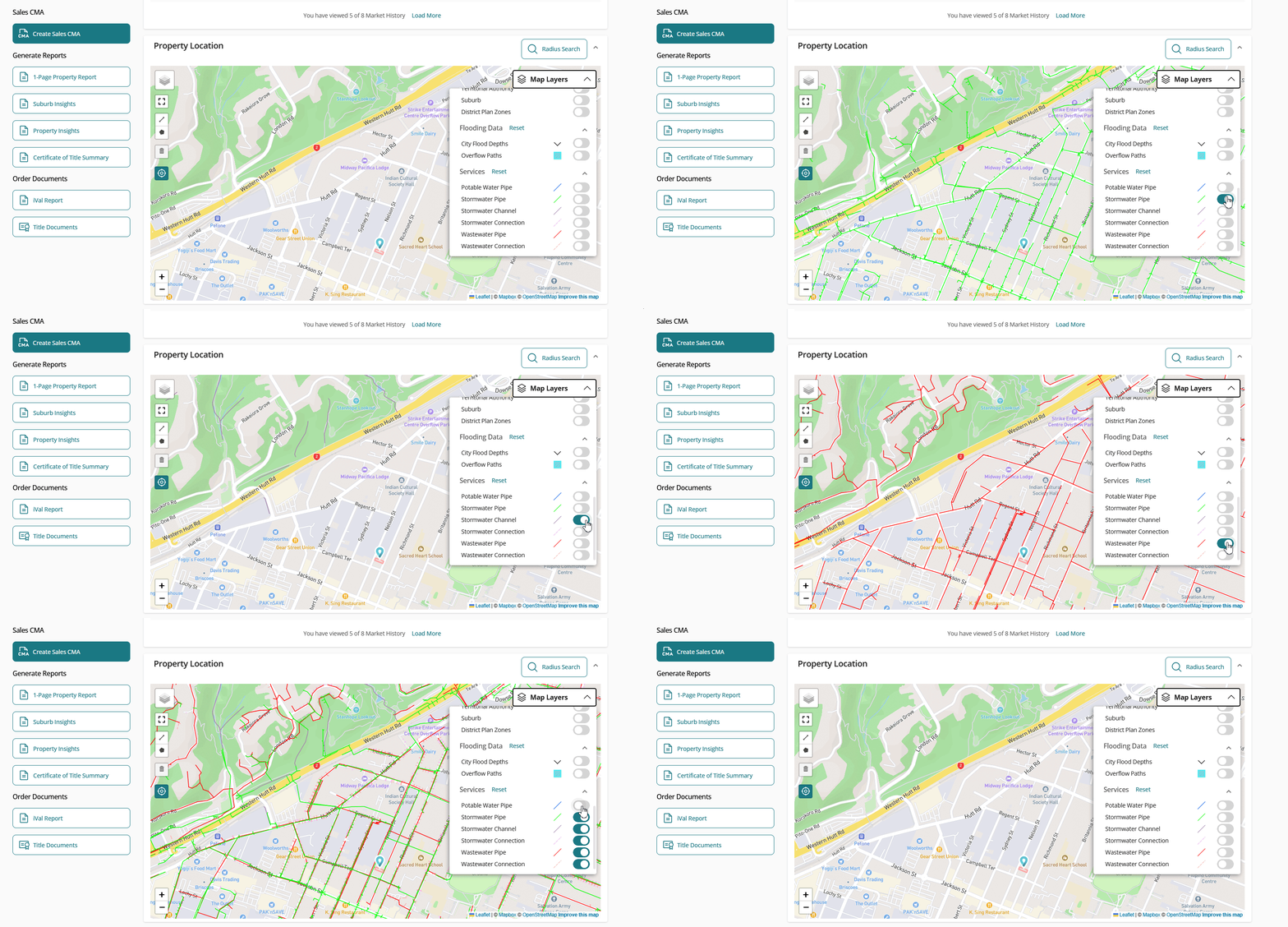
- Services layers, covering Potable Water Pipe, Stormwater Pipe, Stormwater Channel, Stormwater Connection, Wastewater Pipe, and Wastewater Connection, are available across the wider Wellington region.
-
These layers are available on the search results map view and in the map section of the property summary page.
-
As with all map layers, these only appear where data exists for the property being viewed.
Why it matters
Zoning, flood risk, and services infrastructure all come up in conversations with vendors, and until now that meant checking council sources separately. Having them on the map alongside everything else keeps the whole picture in one place.
⭐ Clearer status while your CMA is being generated
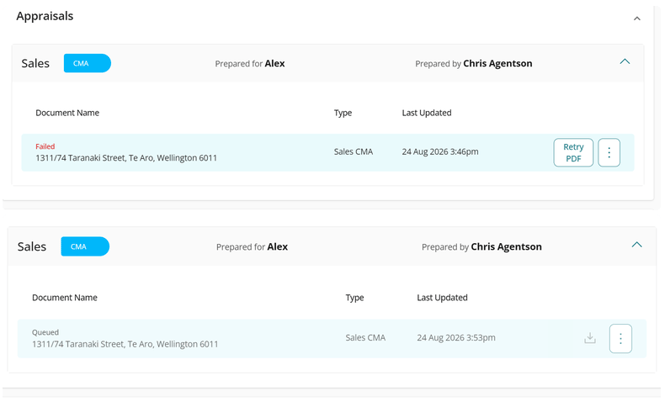
After finalising a CMA, the Appraisals section now reads "Your CMA PDF is being generated" while the document is being prepared. It previously said "You don't have any documents for this appraisal", which suggested something had gone wrong even though the CMA was on its way. Agents still get the notification confirming the CMA is being finalised, but the two messages now say the same.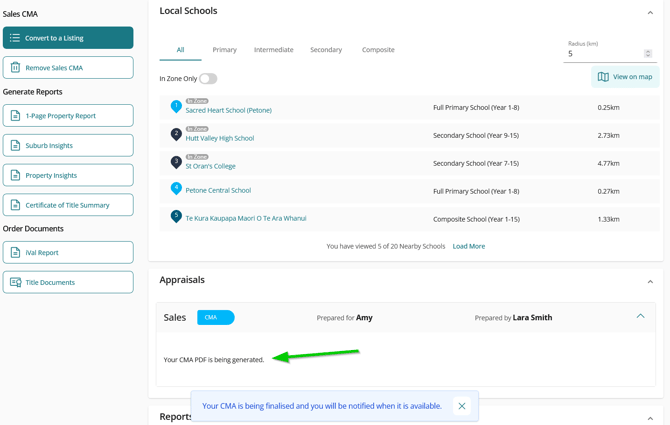
⭐ Retry when CMA generation fails
If PDF generation times out while finalising a CMA, you can now retry it yourself. Selecting Retry PDF queues the CMA for another attempt, and a notification confirms when it's been finalised. Previously a failure left the CMA marked as finalised with no PDF attached, and the only way forward was to edit the CMA, which created a draft copy just to get the document out.