
What's New
- Highlighted Property Selection on the Map
- Custom Cover Image in the CMA Builder
⭐ Highlighted Property Selection on the Map
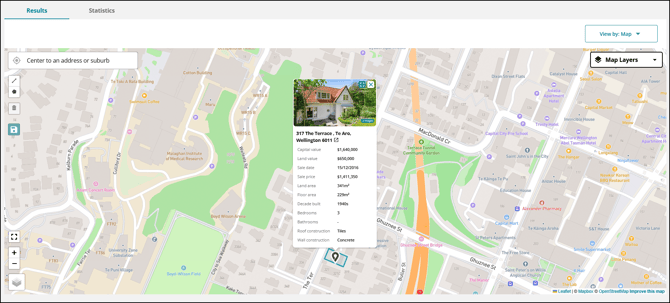
Part of Release 5.8 last week, it's now much easier to keep track of which property you're looking at - parcel highlighting and selection now work across both the property summary map and the search results map view.
How it works
➤ On the property summary map, the subject property's parcel is highlighted in Valocity red to remain visible as your reference point while you explore nearby properties.

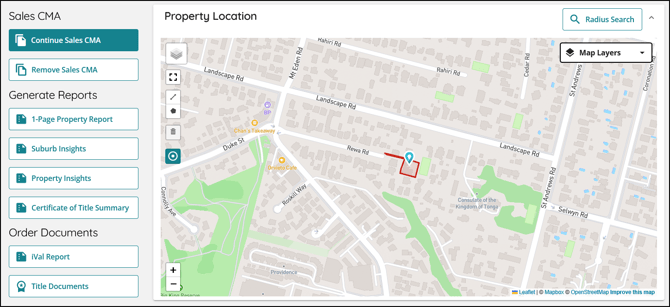
➤ On both the property summary map and the search results map, clicking any parcel highlights it in Valocity blue - making it clear which property you're inspecting at a glance.
➤ Only one additional parcel can be selected at a time.
➤ You can click anywhere on the parcel to open the property card - not just the pin.
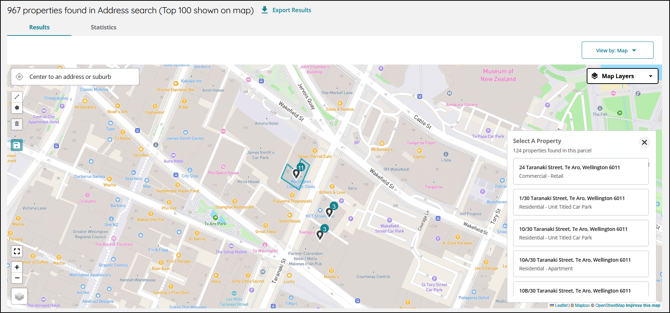
➤ For apartments and units, all properties within a shared parcel are grouped together under a single parcel boundary - a pop-up panel on the right displays all properties within that parcel.
Why it matters
When you're comparing nearby properties on the map, it's easy to lose track of where you started. Keeping the subject parcel highlighted means you always have a clear anchor point - no more wondering which one was the original property. Clicking anywhere on a parcel (rather than hunting for a small pin) also makes navigating the map a lot less fiddly.
⭐ Custom Cover Image in the CMA Builder
Agents can now swap out the cover image directly in the CMA builder, no need to go back to Company Profile to make changes.
How it works
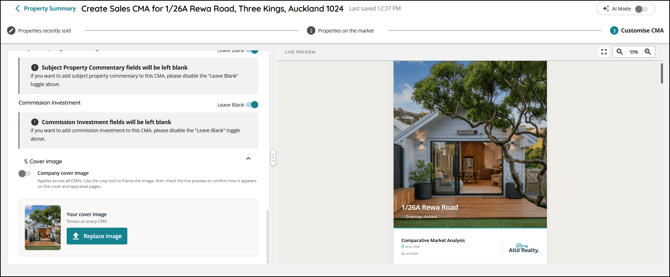
➤ A new Cover Image section is available within the Customise CMA step of the builder.
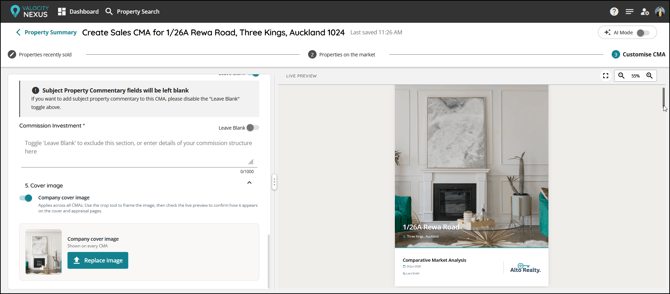
➤ Agents can upload a new cover image to replace the one set in Company Profile - the change applies across their CMAs.
➤ When uploading a cover image, the crop is set to 4:5 portrait, optimised for the new Sales CMA template. For the Digital CMA, the image will be displayed dynamically in landscape 16:9.
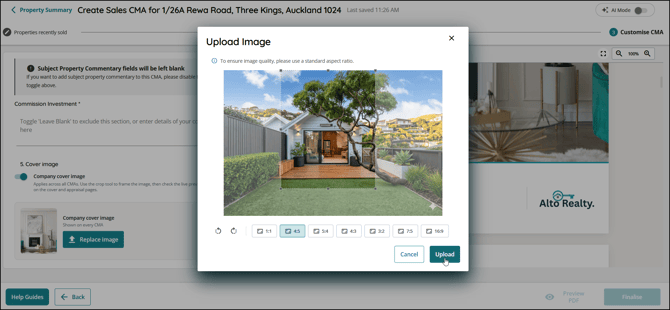
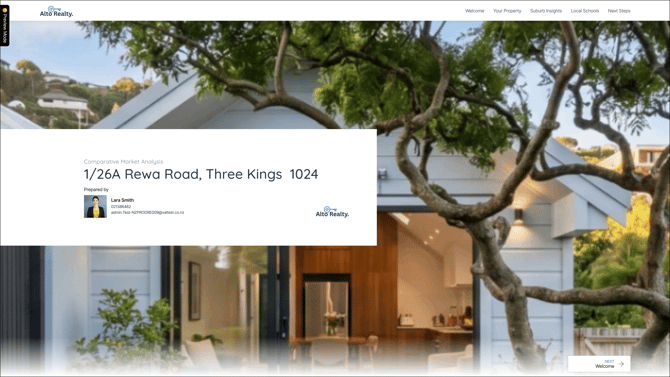
➤ Prefer a landscape photo? You can upload one - it will be automatically centred to fit the new Sales CMA template.
➤ When creating a new CMA, your previously uploaded cover image carries over automatically - no need to re-upload each time.
➤ Prefer to use the company default? Toggle on Company cover image to switch back to the cover image set by your Admin in Company Profile at any time.
➤ This feature is supported across the new Sales CMA, Digital CMA, and the legacy longform CMA templates.
Why it matters
Not every CMA suits the same cover image - sometimes you want something that fits the property, the client, or the campaign. Being able to swap the cover image on the fly, right in the builder, means agents can personalise each CMA without touching company-wide settings. Quick to change, easy to revert.