
⭐ CMA: Commission Schedule Defaults to "Leave Blank"
The Commission Schedule's "Leave Blank" toggle now defaults to on, a small change off the back of user feedback, but a high-impact one.
How it works➤ When building a CMA, the Commission Schedule's "Leave Blank" toggle is now switched on by default on Customise CMA step
➤ Most CMAs don't need a commission schedule filled in, so the default now matches the common case. You only switch it off when you want to add commission details.
Why it mattersThis one came straight from user feedback. The toggle used to default to mandatory, meaning you had to flip it to "Leave Blank" manually every single time, a small but constant bit of friction. Defaulting to "Leave Blank" takes that step away for the vast majority of CMAs, while keeping full control for the times you do need it.
⭐ Editable Target Property Address in the CMA Builder
Users can now edit the target property address directly in the CMA Builder, giving them full control over how the address appears on their CMA. The address on record doesn't always match the property, most commonly for new builds and subdivisions, and until now that field was locked, a common piece of feedback we've had from users. With this update, users can correct the address on the spot so the CMA presented to their client always shows the right details. Edits are purely presentational, applying to the CMA only, and never affect the underlying property data or council records.
How it works
➤ In the Customise CMA step, the Target Property Details pop-up modal now has a Property Address section at the top, with editable fields for Street address, Suburb, City/Region (NZ only), and Postcode.
➤ Each field is pre-populated with the current address and saves automatically as the user types. Deleting the value in an editable address field will revert it to its default value.
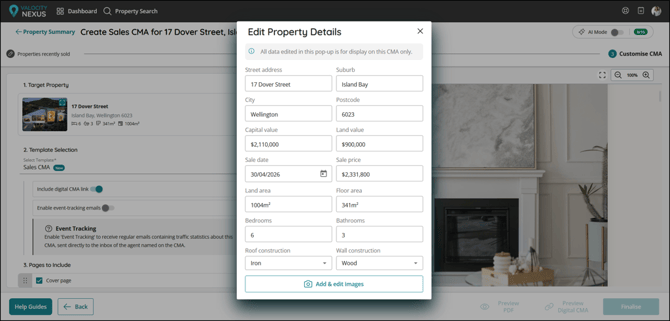
➤ A banner in the modal clarifies that edits affect only this CMA's display; they do not alter the property data or council records. Each field pre-populates with the current address and saves automatically as the user types. Deleting a value in an editable address field reverts it to its default.
➤ The edited address flows through to the generated CMA and stays in sync across all active templates, including the new CMA, Digital CMA, and legacy longform CMAs including Rental CMA in AU.
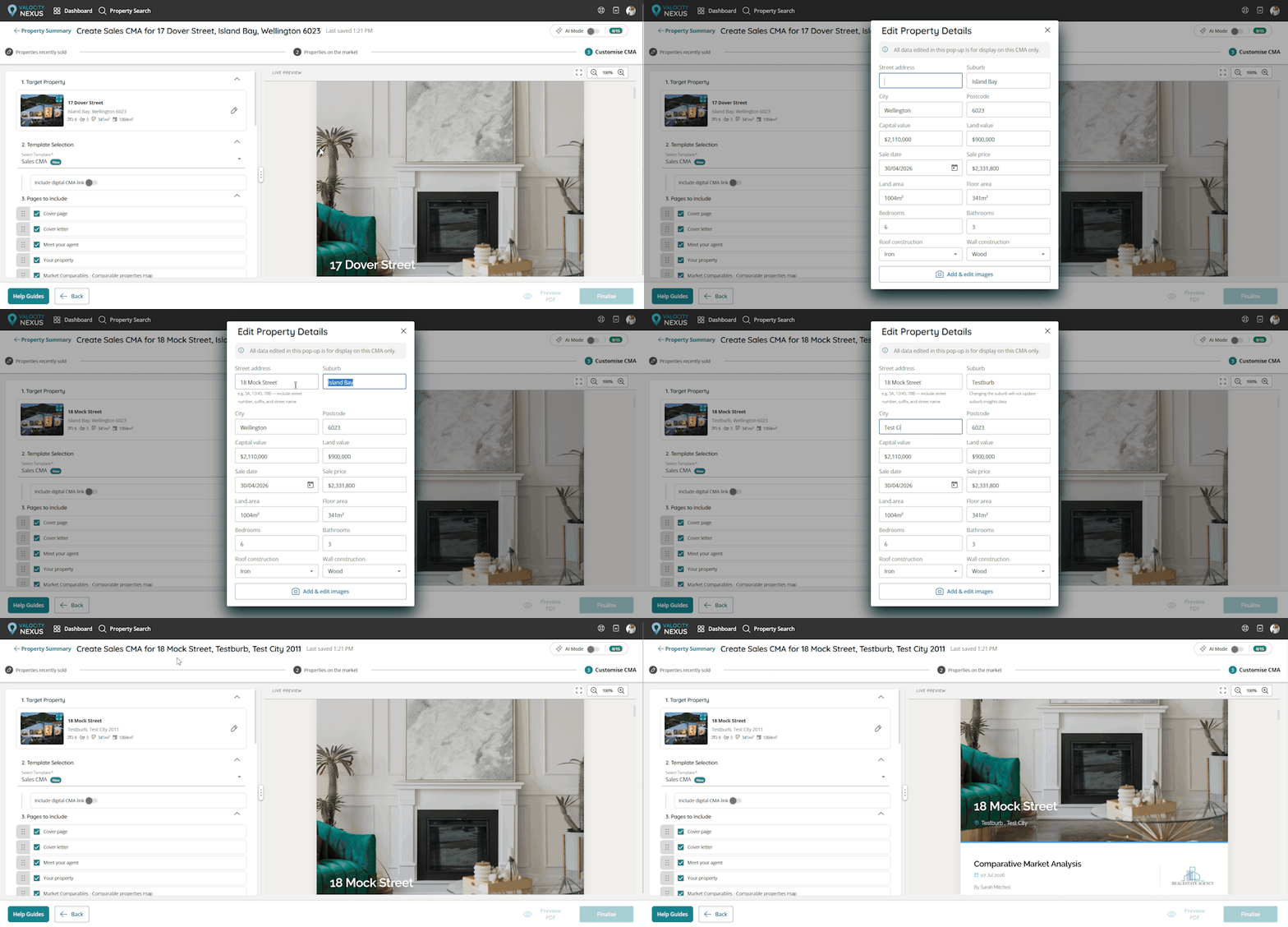
➤ Editing the suburb field does not change the Suburb Overview report. This report is still generated for the original target property address, and users can choose to exclude it from the CMA if they prefer.
➤ When a user edits the target property address, the change now correctly updates:
The target property card in the CMA Builder, the Dashboard where the edited address appears, and the page title for Create a CMA, which now dynamically shows the edited address (e.g. "Create CMA for 123 Main Street")
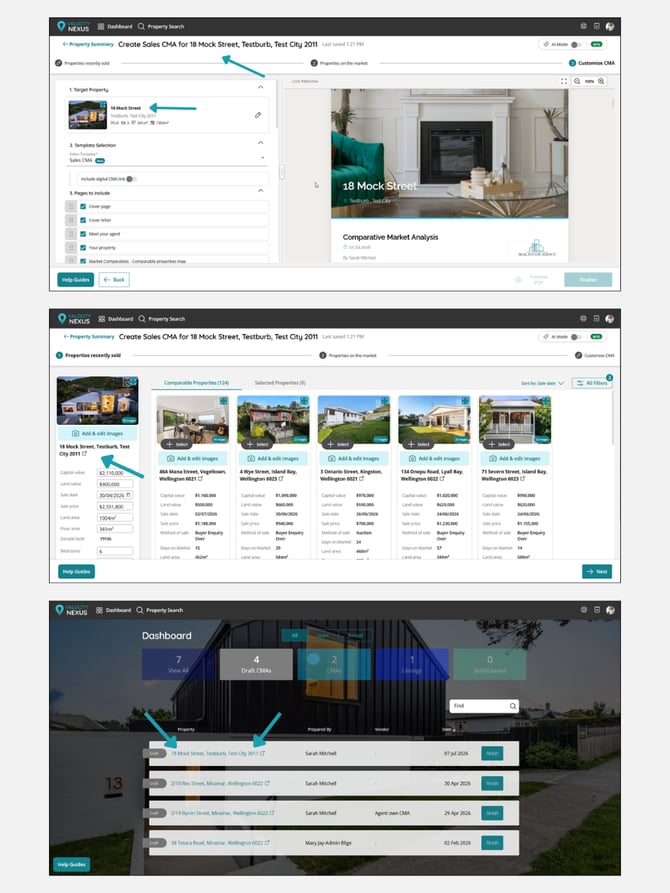
➤ The Property Summary page intentionally continues to display the original address. This page reflects the official property record, whereas the editable address field is scoped only to the CMA creation flow.
➤ When a user updates a property's address in a CMA, the edited address will now be reflected in the PDF file name when the report is generated and downloaded.
Why it matters
There are occasions where the address pulled through does not accurately reflect the property, particularly for new builds and subdivisions, and a locked field previously left agents with no means to correct it. This update returns that control to the user: agents can now amend the address directly and produce an accurate, client-ready appraisal without delay, even before official records have been updated, and with no impact on the underlying source data.
⭐ Comparables Map in the New CMA Template
The new CMA template now includes a map that plots the target property alongside its selected comparables, giving clients a clear visual sense of location.
How it works
➤ A new Comparables Map page has been added to the new CMA template, displaying all selected properties, both on-market and recently sold, in relation to the target property.
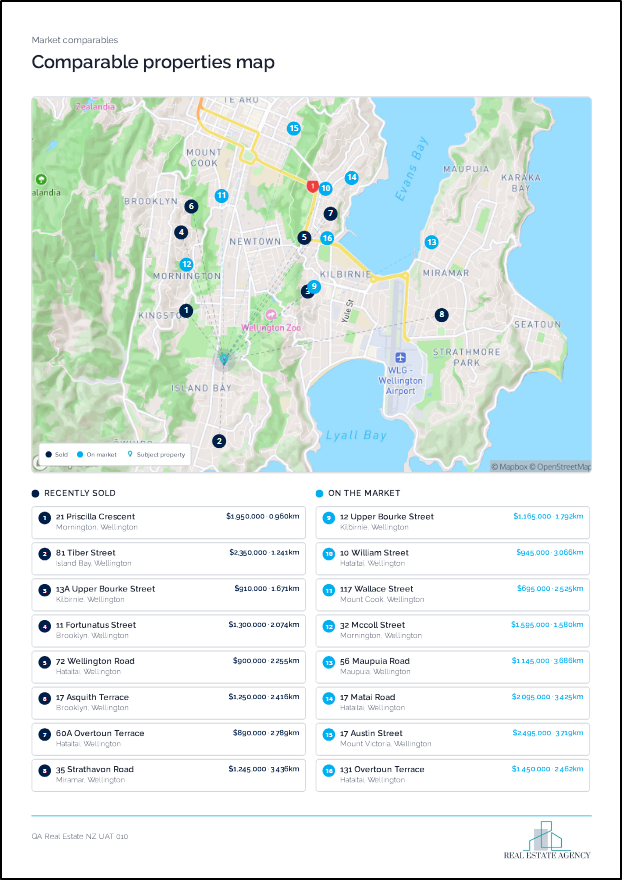
➤ The section can be unticked to remove it from the CMA if it's not needed.
➤ Where there are more than eight properties per category, the overflow moves to a new page (fitting up to eight per column), with the map itself remaining on the first page.
Why it matters
A comparables map was a valued part of the legacy longform CMA, and bringing it to the new template has been a priority. As part of our fast-follow work, it's now available, rebuilt and improved for the new CMA experience. Plotting the target property against its comparables gives clients an immediate sense of how the properties relate geographically, adding context that a table alone can't convey and making the CMA more compelling to present.
⭐ Realestate.co.nz Link in Market History
Active listings in the Market History table now link straight through to their Realestate.co.nz listing, so the full listing is only a click away.
How it works
➤ In the Market History table, the latest Listed for Sale or Listed for Rent entry now includes a link out to the corresponding Realestate.co.nz listing.
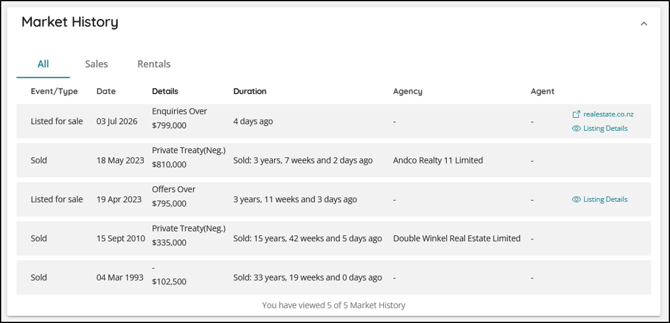
➤ The link only appears where the listing is currently active.
Why it matters
When reviewing a property's market history, agents often want to see the full listing behind an entry, the photos, description, and details that don't live in the table. Linking active listings directly to Realestate.co.nz saves the manual search and takes users straight to the source, making it quicker to get the full picture of what's currently on the market.
⭐ AI Mode Toggle — Usage Visibility & Messaging
We've updated the AI Mode toggle in the CMA Builder so it clearly reflects a user's usage against their monthly allowance, so they always know how many AI CMAs they have left and what happens when they hit their limit.
How it works
➤ The toggle reflects live usage, showing how many AI CMAs remain in the current billing month for the user.
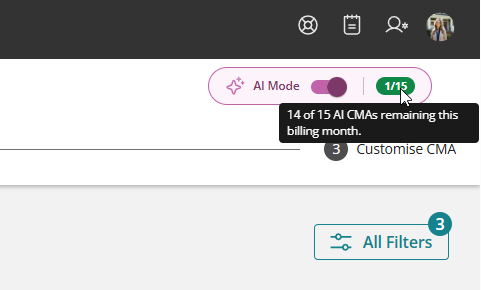
➤ As the allowance runs low, an amber warning and updated messaging flag how many CMAs are left.
➤ When the limit is reached, the toggle shows Limit reached and a banner explains that AI features are paused for that CMA, with the option to finish manually, upgrade, or enable overages. The toggle stays visible in a disabled state rather than disappearing.
➤ If overages are enabled, the toggle shows how many extra CMAs have been used, with clear messaging on per-CMA billing and a link through to Billing. AI features remain available.
Why it matters
For users with AI Mode, the toggle now gives honest, at-a-glance visibility of their usage, so there are no surprises as they approach or hit their monthly limit. And if they choose to go into overage, the messaging keeps the per-CMA cost clear and links straight to Billing, so usage and spend stay transparent throughout.