
⭐ Licence details in agent profiles
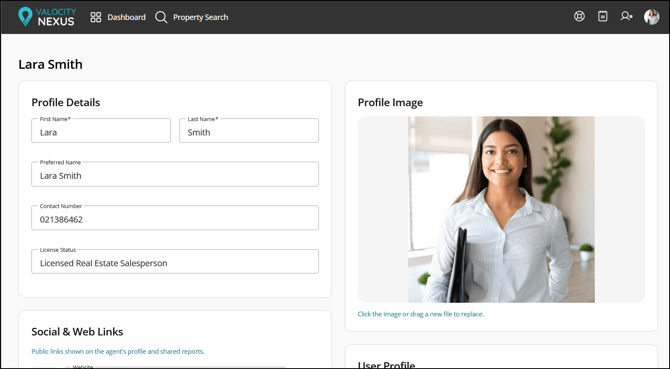
Agents can now add their licence details to their profile, so they appear alongside their name on client-facing material.
How it works
-
A new optional Licence details field has been added to the agent profile.
-
The field accepts alphanumeric characters, along with
{ } ( ) _ -. -
The licence details render exactly as typed, with no formatting or label so agents have full control over how they appear.
-
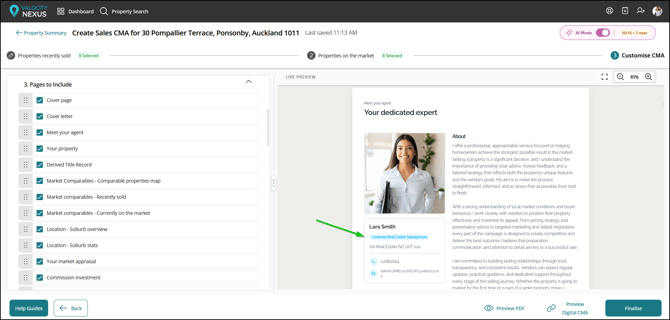
When filled in, the licence details display directly under the agent's name on the Meet Your Agent page of the Sales CMA.
-
Leaving the field blank means nothing is displayed, so it's entirely up to the agent.
Why it matters
Licensed real estate agents in New Zealand must comply with strict display and marketing requirements under the Real Estate Agents Act 2008 and the Professional Conduct and Client Care Rules 2012. Until now, agents were working around this by putting their licence details in the preferred name field, which doesn't accept numbers, making it awkward at best. A dedicated field means agents can meet their obligations properly, with their licence details presented cleanly where clients see it.
⭐ Social links in agent profiles
Agents can now add a wider range of social and web links to their profile, giving clients more ways to connect with them.
How it works
-
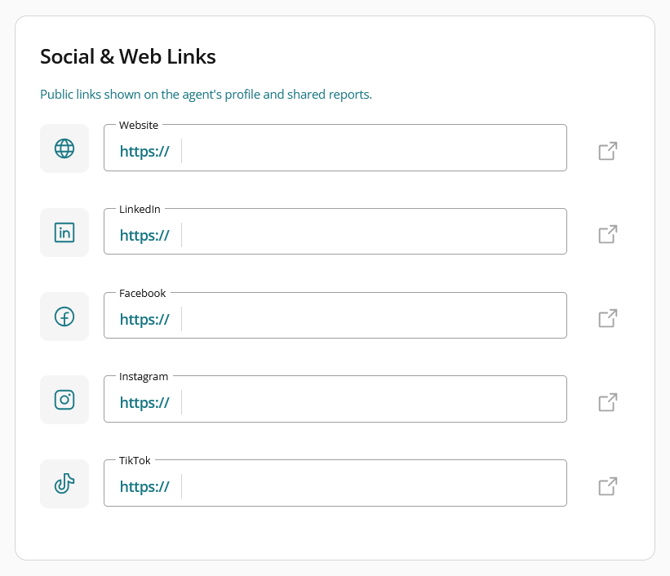
The agent profile now includes fields for Website, LinkedIn, Facebook, Instagram, and TikTok.
-
Each field is optional. Anything left blank simply won't appear in the CMA.
-
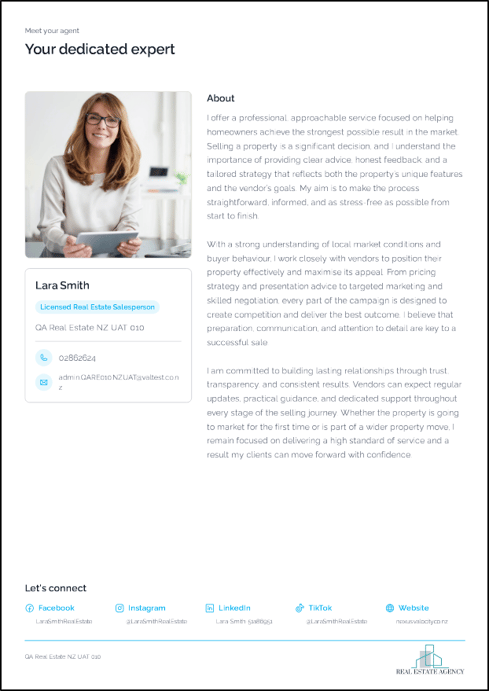
Completed links display under the agent's details on the Meet Your Agent page of the Sales CMA.
-
Links are clickable in the PDF version, so clients can go straight to an agent's profile from the document itself.
-
The links are formatted to stay neat and readable when printed.
Why it matters
Agents build their presence across a range of platforms, and a single website link no longer reflects how clients actually find and follow them. Adding the major social channels means agents can point clients to wherever they're most active, and because every field is optional, they only show what's relevant to them.
⭐ One image for agent profiles
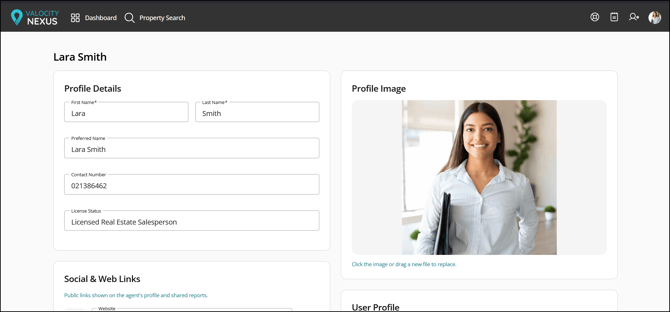
The profile page now uses a single image, replacing the two separate uploaders agents had before.
How it works
-
The Change Profile avatar uploader has been removed, leaving one image to manage when editing a profile.
-
What was previously the CMA image is now simply the Profile image, and it's used everywhere the agent's photo appears.
-
Existing users have had their CMA image carried across automatically, so nothing needs re-uploading.
Why it matters
Two uploaders on one page created unnecessary guesswork, with agents having to work out which image went where, and it was easy to update one and forget the other. Consolidating to a single profile image simplifies things, the photo an agent uploads is the photo their clients see.
⭐ Editable cover letter in the CMA builder
Agents can now personalise the cover letter for each CMA, adding a vendor-specific touch rather than sending the company default every time.
How it works
-
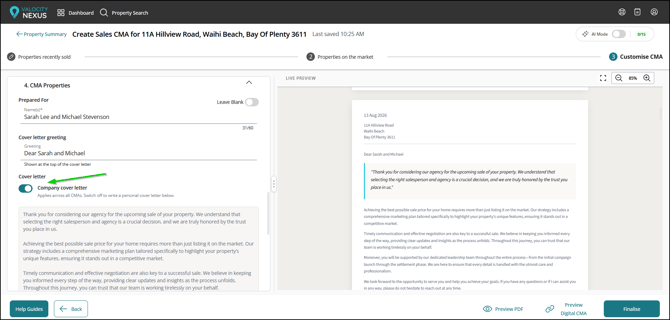
A new Cover letter section has been added under CMA Properties on the Customise CMA step of the CMA Builder.
-
The Prepared For now applies to the cover page only, so agents can enter the vendor's full name exactly as they want it presented there. The field is optional, and turning on Leave Blank removes it from the cover page entirely.
-
A new Cover letter greeting field sits at the top of the cover letter and automatically pulls the vendor's first typed name with a prefix, for example "Dear Sarah", and customise it
-
The greeting is optional and fully editable. Once an agent customises it, their wording stays as written even if the Prepared For name changes afterwards. Leaving it blank means no greeting appears.
-
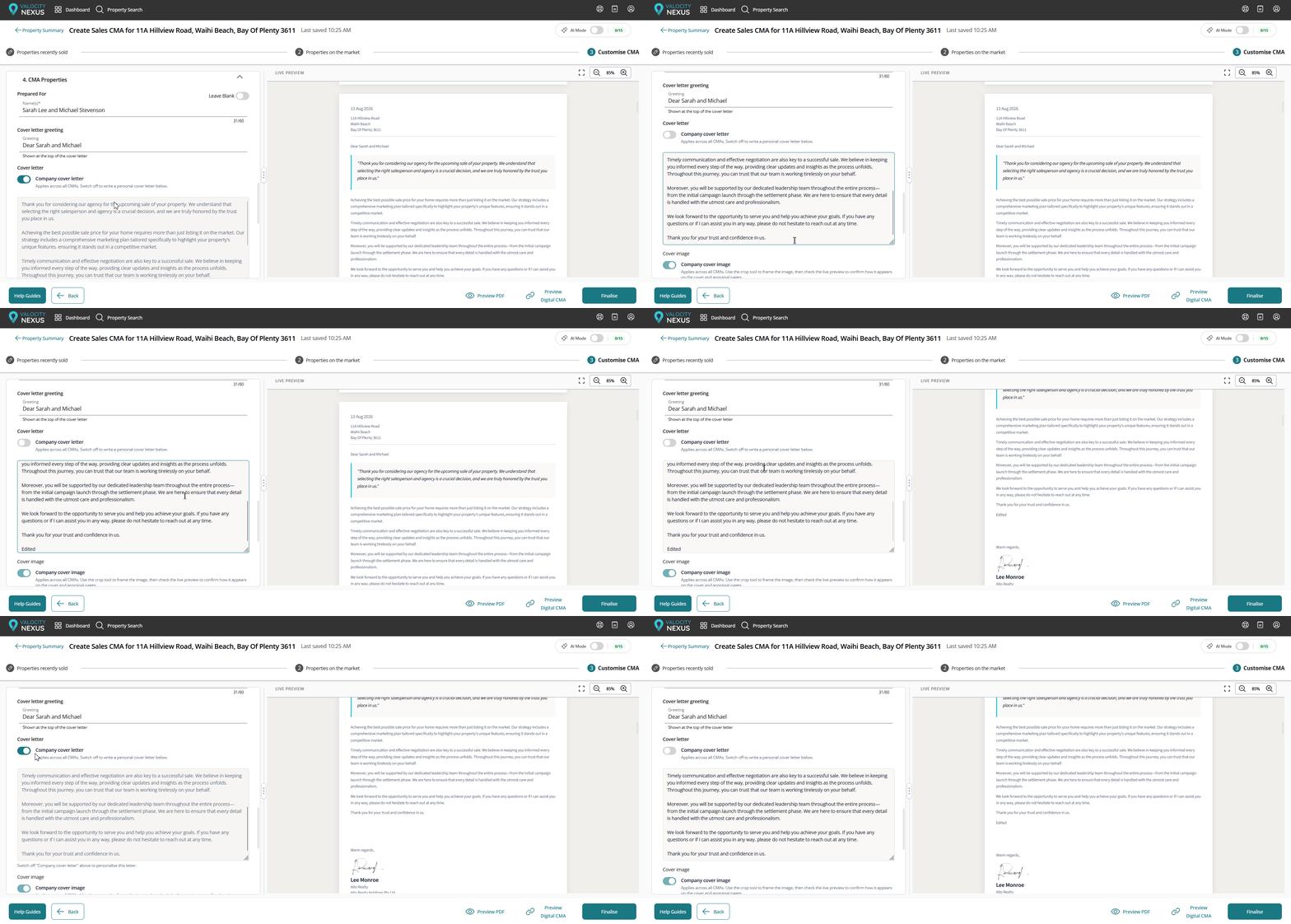
The Company cover letter toggle is on by default. Switching it off for the first time copies the current company letter across as a starting point, so agents can edit from there rather than beginning with a blank page.
-
Toggling back on restores the company letter, and the personal version is kept, so agents can switch between the two without losing their work.
-
New draft CMAs open with the last toggle setting used, and it can be switched on or off at any time.
-
Fields are grouped under CMA Properties in the following order: Prepared For, Cover letter greeting, Cover letter, Cover image, Price range, Subject property commentary, and Commission & investment.
-
Every edit updates the live preview immediately, with no save step.
-
CMA Admins can view and edit the custom cover letter of the Prepared by user, so they can manage and adjust letters on behalf of their agents.
-
💡 Note: The Prepared For and Cover letter greeting behaviour described above applies to the Sales CMA only. On the Digital CMA, Prepared For continues to serve as the cover letter greeting.
Why it matters
Winning a listing often comes down to how personal the pitch feels. Agents can now open with something specific, a reference to the conversation they've had or what makes the property worth talking about. That's exactly where a CMA earns its keep, and the company default is still one toggle away when a standard letter will do.